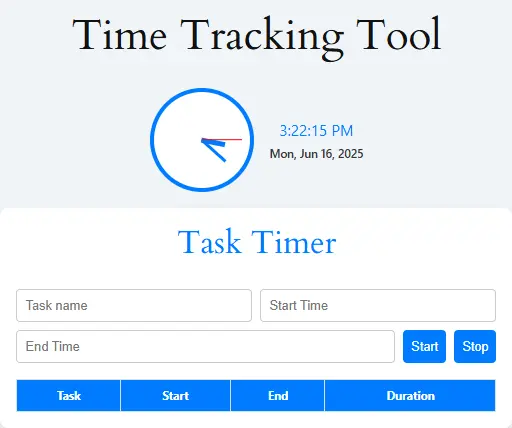
Task Timer
| Task | Start | End | Duration |
|---|
Suppose a client call ran from 9:14 to about 10:00 and you need to bill it. You can guess, or you can time the task as it happens. A free online time tracker gives you the second option without an account, as long as you keep the page open and understand what it will not keep. The notes below cover a full session, what the log shows, where the tool stops, and how to move your numbers somewhere durable.
Log one task from start to finish
Type the task name first. Stop refuses to record a session without one, so a blank name costs you a session.
Press Start when the work begins. The start time fills in, and the tracker stays quiet until you stop. That silence surprises some people. No elapsed time counts up on screen, so the clock above the tracker is your only live reference.
Press Stop when the work ends. The row joins the log, and the input fields clear for the next task.
Here is how that looks with hypothetical times. You name a session “Client A, homepage revisions,” press Start at 9:14:05, and press Stop at 10:02:40. The row should show a duration of 0h 48m 35s, which is the gap between the two timestamps. Check the first row against your own watch once before you rely on the tool for anything that matters.
A second press of Start before Stop quietly replaces the first start time, so the earlier session disappears. Stop first, every time.
What the log shows and what it forgets
Each row holds four facts: the task name, start time, end time, and duration. Nothing else appears. There is no column for client, rate, or notes, so put that context into the task name itself.
The log lives in the open page. Refreshing the tab, closing it, or leaving the site empties the table. This is the most important thing to know about the tool, and it changes how you should work. Copy each batch of rows into your own notes or a spreadsheet at the end of a session. Waiting until Friday invites a lost afternoon.
Where the tool stops
Some needs fall outside what this tracker does. Check your need against the table before you depend on it.
| If you need | This tracker | Workaround |
|---|---|---|
| A pause | No | Stop, then Start again with the same name. Each pause becomes a separate row. |
| To add or fix a row by hand | No | Record the correction in your own notes. |
| To delete a row | No | Reload clears everything, so copy what you need first. |
| An export file | No | Copy the table into a spreadsheet. |
| Totals per day or week | No | Add the durations yourself. |
| Entries kept between visits | No | Copy them before you leave. |
| A running total during a session | No | Check the clock above the tracker. |
Time also comes from your device. The clock and time zone are whatever your computer or phone reports, so a client in another city requires you to convert the times yourself.
Turning a log into an invoice
An invoice needs a total per task, and the log supplies the raw material. Take the example from earlier. The 48 minutes and 35 seconds convert to about 0.81 hours. Depending on the rule in your contract, that becomes 0.8 hours (rounded to one decimal), 0.75 hours (nearest quarter hour), or 1.0 hour (rounded up to the next quarter hour). Doing the conversion at invoice time keeps the log accurate, and it lets you change the rule without touching the record.
If the contract says nothing about rounding, bill the exact time. Rounding up in your favor without disclosing it is the kind of decision that causes disputes later, so write the rule into the next contract.
Timesheets for employees
Employees usually have an official timesheet, and that record governs. The U.S. Department of Labor does not prescribe a timekeeping method. Employers can use any method they choose, but the records they keep must be accurate and must show the hours worked.
A personal log like this one can back up your own memory of a long week. It does not replace the company’s system.
Two habits that keep the log useful
Name tasks the way you would describe them to a client or a manager. “Client A, homepage revisions” tells you what happened when you read it a week later. “Work” does not.
Track the work you would otherwise forget. Email, phone calls, and short interruptions only appear in the log if you start a session for them. If you skip them, your totals will look smaller than your week felt.
Before you close this tab
Copy the rows you need, check the first duration against a clock, and decide whether you need a tool with pauses, exports, and saved history. If you do, this tracker still helps for quick timing. It just should not be the only record.
Frequently Asked Questions (FAQs)
Yes! You can use it anytime, anywhere without any cost.
No registration needed. Just open the page and go.
Absolutely. You can pause, switch tasks, and resume easily.
Yes, it saves locally on your device.
Use the export feature to get a PDF or CSV.
Yes, it’s optimized for mobile and tablets.
Yes, download it and send it via email or upload it to your workspace.
Use our Time Zone Converter Tool for accurate shifts.
Extremely accurate, updating every second in real-time.
No, you need internet access for full functionality.
All data is stored locally; we don’t collect or track usage.
Currently, no. But we’re working on advanced customization options.
Pro Tips for Effective Time Tracking
- Be Consistent – Track all your work sessions, not just the productive ones. The data is most valuable when it’s complete.
- Use Descriptive Task Names – “Client Project X – Design Phase” is much more useful than just “Work” when reviewing your data.
- Review Weekly – Set aside 15 minutes each week to analyze your time data and spot patterns or opportunities for improvement.
- Set Time Goals – Aim for specific time allocations for different types of tasks to maintain balance in your work.
- Track Interruptions – Note when you get distracted or switch tasks to identify productivity killers in your environment.
- Combine with To-Do Lists – Use time tracking alongside your daily task list to understand how long different types of tasks typically take.
Disclaimer
This tool is provided for educational and productivity purposes only. Results may vary depending on individual work habits and project types. Users should always use their own judgment when planning schedules, budgets, or deadlines.