Gradients add a modern and visually appealing touch to web design. While background gradients are commonly used in UI elements, applying them to text can create a stunning visual effect. However, CSS does not directly support text gradients like background gradients. Luckily, there is a simple way to achieve this effect using CSS properties. In this guide, we’ll show you Converting background gradients to text gradients and how to effortlessly convert background gradients to text gradients.
Using the CSS Gradient Generator Tool
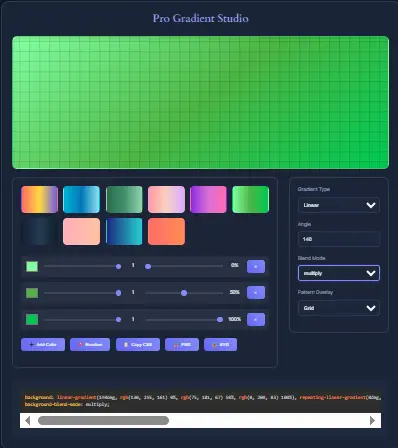
Instead of manually writing CSS code, you can use our CSS Gradient Generator tool to create gradient effects for both backgrounds and text. This tool helps you generate the exact gradient style you need without the hassle of experimenting with different CSS properties.
Steps to Use the Tool
- Open the CSS Gradient Generator.
- Select the gradient type (linear, radial, or conic).
- Choose your colors and adjust the gradient direction.
- Enable the Text Gradient option.
- Copy the generated CSS code and apply it to your website.
Features of the CSS Gradient Generator
- Easy-to-Use Interface: A simple and intuitive design for quick gradient creation.
- Multiple Gradient Types: Supports linear, radial, and conic gradients.
- Live Preview: Instantly see how your gradient looks before applying it.
- Customizable Color Stops: Add multiple colors for complex gradient effects.
- Copy-to-Clipboard: Get the CSS code instantly with a single click.
Advanced Features
- Text Gradient Support: Convert any background gradient into a beautiful text gradient effect.
- CSS Code Optimization: Generates clean and optimized CSS for better performance.
- Transparency Support: Use RGBA or HSLA values to create semi-transparent gradients.
- Gradient Animations: Apply CSS animations for dynamic gradient transitions.
- Export Gradient Images: Download gradient backgrounds as PNG or SVG files.
How to Convert Background Gradients to Text Gradients in CSS
Gradient backgrounds are one of the most popular web design trends because they add depth, color, and visual interest to a website. But many designers and developers eventually want to go one step further: instead of applying a gradient to the page background, they want the gradient to appear directly inside the text.
Text gradients can make headings, hero titles, call-to-action text, logos, and highlighted words look more modern and eye-catching. They are commonly used on landing pages, SaaS websites, portfolios, online tools, and modern UI designs.
In this guide, you will learn exactly how to convert a background gradient into a text gradient using CSS. We will explain the required CSS properties, browser support, accessibility concerns, common mistakes, and best practices so you can create beautiful gradient text that works across devices.
What Is a Text Gradient?
A text gradient is a CSS effect where a color transition appears inside the letters themselves instead of behind them. For example, instead of a heading with plain blue text, you might have a heading that transitions from blue to purple or orange to pink.
Unlike traditional solid-color text, gradient text uses multiple colors blended smoothly across the text.
Common examples include:
- Website hero headings
- Product titles
- Logos and branding
- Buttons and call-to-action text
- Highlighted keywords in articles
- Social media banners and landing pages
Because text gradients are created entirely with CSS, they do not require image files. This helps pages load faster and remain responsive on mobile devices.
Why Convert a Background Gradient to a Text Gradient?
Many developers already have a background gradient that they like and want to reuse it for text.
For example, you may already have a background like this:
background: linear-gradient(90deg, #4f46e5, #9333ea);
Instead of applying that gradient behind an element, you can apply the same color transition directly to the text.
Converting a background gradient into text provides several advantages:
- Creates a more modern and premium look
- Makes headings stand out
- Keeps branding colors consistent
- Avoids the need for image-based text
- Works well in responsive web design
- Improves page speed compared to using graphic files
Modern websites often use gradient typography because it gives the design a more polished and interactive appearance.
The Basic CSS Needed for Gradient Text
To convert a background gradient into a text gradient, you usually need three CSS properties:
background: linear-gradient(90deg, #4f46e5, #9333ea);
-webkit-background-clip: text;
-webkit-text-fill-color: transparent;
You can also include the standard property:
background-clip: text;
When combined, these properties tell the browser:
- Apply the gradient as a background
- Clip the background so it only appears where the text exists
- Make the actual text color transparent
The result is that the gradient becomes visible inside the letters.
Full Example of Gradient Text CSS
Here is a complete example:
<h1 class="gradient-text">Gradient Heading</h1>
.gradient-text {
  background: linear-gradient(90deg, #4f46e5, #9333ea);
  background-clip: text;
  -webkit-background-clip: text;
  color: transparent;
  -webkit-text-fill-color: transparent;
}
This code works in most modern browsers and is the most common way to create CSS text gradients.
Understanding Each CSS Property
1. background: linear-gradient()
This creates the gradient itself.
Example:
background: linear-gradient(to right, #00c6ff, #0072ff);
You can use:
- Two or more colors
- Different directions
- Angles such as
45deg,90deg, or180deg - Radial gradients or conic gradients
2. background-clip: text
This property clips the background so it only shows through the text.
Without background-clip: text, the gradient would remain behind the entire element instead of appearing inside the letters.
3. color: transparent
The text color must become transparent so the gradient can show through.
If you keep a normal text color such as black or white, the gradient effect will not appear.
4. -webkit-text-fill-color: transparent
This property improves compatibility with Chrome, Safari, and other WebKit-based browsers.
Many developers forget this step, which is one of the most common reasons gradient text does not work.
Example: Converting a Background Gradient to a Heading Gradient
Suppose you already have this background gradient:
background: linear-gradient(135deg, #ff6b6b, #f06595);
To use the same effect on text:
.heading {
  background: linear-gradient(135deg, #ff6b6b, #f06595);
  background-clip: text;
  -webkit-background-clip: text;
  color: transparent;
  -webkit-text-fill-color: transparent;
}
Then apply it like this:
<h2 class="heading">Modern Gradient Text</h2>
This is the fastest way to reuse an existing gradient background as text styling.
Different Types of Text Gradients
Linear Gradient Text
Linear gradients are the most common and easiest to use.
background: linear-gradient(to right, #ff512f, #dd2476);
This creates a left-to-right transition.
Multi-Color Gradient Text
You can use more than two colors:
background: linear-gradient(90deg, #ff0000, #ff9900, #00ccff, #9900ff);
This creates a colorful rainbow-like effect.
However, avoid using too many colors unless you want a playful or artistic design. For professional websites, 2–3 colors usually work best.
Best Color Combinations for Gradient Text
Choosing the right colors is important because the gradient should remain readable and match your website style.
Popular text gradient combinations include:
- Blue to Purple
- Pink to Orange
- Cyan to Blue
- Green to Teal
- Purple to Pink
- Gold to Orange
Examples:
background: linear-gradient(to right, #667eea, #764ba2);
background: linear-gradient(to right, #ff9966, #ff5e62);
background: linear-gradient(to right, #00f5a0, #00d9f5);
These combinations are widely used in hero sections, buttons, branding, and modern UI design.
Common Mistakes When Creating Gradient Text
Many users struggle because of a few common CSS mistakes.
Forgetting background-clip: text
Without it, the gradient appears behind the text rather than inside it.
Forgetting -webkit-text-fill-color: transparent
This often causes the text to remain solid-colored in Chrome or Safari.
Using a Background on the Wrong Element
Apply the gradient directly to the text element itself, such as the h1, h2, span, or p tag.
Using Poor Color Contrast
If the colors are too light or too similar, the text may become difficult to read.
Applying the Gradient to Small Text
Gradient text works best on larger text such as:
- Headings
- Hero titles
- Logo text
- Feature section titles
Very small text may become hard to read.
Browser Support for Gradient Text
Gradient text works in all major modern browsers, including:
- Google Chrome
- Microsoft Edge
- Safari
- Firefox
- Opera
However, some browsers require the -webkit- prefix for full support.
For best compatibility, always include both:
background-clip: text;
-webkit-background-clip: text;
and
color: transparent;
-webkit-text-fill-color: transparent;
This ensures the effect works correctly across desktop and mobile devices.
Accessibility and Readability Tips
Gradient text should always remain readable.
To improve accessibility:
- Use strong contrast between the text and background
- Avoid placing gradient text on another gradient background
- Use larger font sizes
- Test on mobile and desktop
- Avoid very thin fonts
- Check readability in dark mode and light mode
A gradient heading may look beautiful on a white background but become hard to read on a dark background. Always test your design in multiple situations.
If accessibility is a priority, keep important body text as a solid color and use gradients only for headings or decorative text.
Advanced Gradient Text Effects
Once you understand the basic CSS, you can create more advanced effects.
Animated Gradient Text
You can animate the gradient using CSS keyframes:
.gradient-text {
  background: linear-gradient(90deg, #ff6b6b, #4ecdc4, #556270);
  background-size: 300%;
  background-clip: text;
  -webkit-background-clip: text;
  color: transparent;
  -webkit-text-fill-color: transparent;
  animation: gradientMove 5s linear infinite;
}

@keyframes gradientMove {
  0% {
    background-position: 0%;
  }
  100% {
    background-position: 300%;
  }
}
This creates a moving gradient effect inside the text.
Gradient Text with Tailwind CSS
If you use Tailwind CSS, you can create text gradients using utility classes:
<h1 class="bg-gradient-to-r from-blue-500 to-purple-500 bg-clip-text text-transparent">
  Gradient Text
</h1>
This is one of the easiest methods for Tailwind developers.
Gradient Text with CSS Variables
You can make your gradients reusable:
:root {
  --brand-gradient: linear-gradient(to right, #667eea, #764ba2);
}

.gradient-text {
  background: var(--brand-gradient);
  background-clip: text;
  -webkit-background-clip: text;
  color: transparent;
  -webkit-text-fill-color: transparent;
}
This allows you to update all gradient text styles from one place.
SEO and Performance Benefits of CSS Text Gradients
Some websites still use image files to create colorful text effects. That approach is not ideal because:
- Images increase page size
- Text inside images cannot be indexed properly
- Images are harder to scale on mobile
- Updating text requires editing the image again
Using CSS text gradients instead offers better:
- Page speed
- Search engine optimization
- Mobile responsiveness
- Accessibility
- Design flexibility
Because the text remains real HTML text, search engines can still read it and users can copy it, resize it, or translate it.
When Should You Use Gradient Text?
Gradient text works best for:
- Homepage hero sections
- Brand slogans
- Featured product names
- Call-to-action headlines
- Logo text
- Marketing banners
Avoid using it for:
- Long paragraphs
- Small body text
- Navigation menus
- Dense blocks of content
Too much gradient text can make a website look cluttered or reduce readability.
Frequently Asked Questions (FAQs) For Converting background gradients to text gradients
1. How do I apply a gradient to text in CSS?
To apply a gradient to text, use the following CSS:
.text-gradient {
    background: linear-gradient(45deg, #ff6b6b, #556270);
    -webkit-background-clip: text;
    -webkit-text-fill-color: transparent;
}
This technique makes the text take on the gradient while keeping the background transparent.
2. Can I use gradient text on all browsers?
Most modern browsers support background-clip: text for text gradients. However, some older browsers may not render it correctly.
3. Can I animate text gradients?
Yes! You can animate text gradients using CSS keyframes:
@keyframes gradientShift {
    0% { background-position: 0% 50%; }
    100% { background-position: 100% 50%; }
}

.text-gradient {
    background: linear-gradient(45deg, #ff6b6b, #556270);
    background-size: 200% 200%;
    -webkit-background-clip: text;
    -webkit-text-fill-color: transparent;
    animation: gradientShift 3s infinite alternate;
}
4. What are the benefits of using text gradients?
Text gradients enhance design aesthetics, making headlines and important text elements stand out. They add a premium look to web pages and improve user engagement.
Final Thoughts
Converting a background gradient into a text gradient is easier than many people think. By combining background, background-clip: text, and transparent text color, you can transform any normal gradient into stylish, modern typography.
The most important steps are:
- Apply the gradient directly to the text element
- Use
background-clip: text - Make the text transparent
- Include the
-webkit-properties for browser support - Choose colors with good contrast and readability
When used correctly, CSS gradient text can make your website look more professional, modern, and visually engaging without slowing down your page.
Whether you are building a portfolio, SaaS landing page, blog, online tool, or business website, learning how to convert background gradients into text gradients is a valuable CSS technique that every web designer and front-end developer should know.
Conclusion
Converting background gradients to text gradients is a simple yet effective way to enhance your web design. Whether you’re creating stylish headings, call-to-action buttons, or unique typography, using a gradient effect can make your website more visually appealing. With the CSS Gradient Generator tool, you can quickly generate and apply text gradients with ease. Try it today and take your design to the next level!
Leave a Reply